ChatGPT, Perplexity, Claude, Gemini and Grok
Get the world's best AI models all under one app with full access to the most premium features offered. No need for multiple apps.
All pro features. Lower cost.
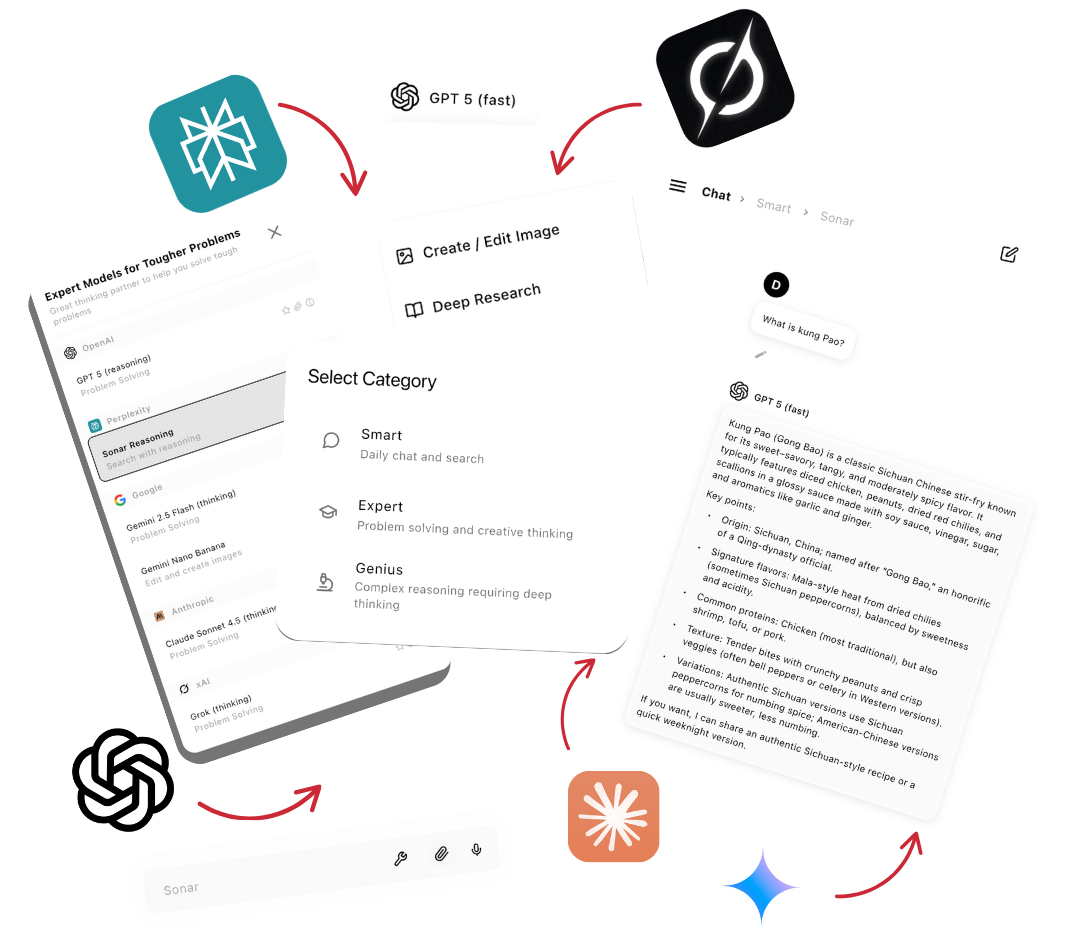
Quick Start Guide
1. Choose Your Model
Step 1: Select a model category
- Smart — for everyday quick questions like "What is the capital of France?", "Summarize this article", or "Review this draft email"
- Genius — for complex tasks requiring deeper thinking like "Review this contract and summarise the key terms" or "Analyze this dataset and plot a graph"
- Expert — for advanced tasks with multiple steps like "Create a landing page using HTML and CSS" or "Create a deep research report about..."
Step 2: Pick a specific model
Choose the exact model you want within that category. You can switch models anytime during your conversation.
Pick your model category
 ChatGPT
 Claude
 Gemini
 Perplexity
 Grok
GrokPick the model
2. Regenerate with a Different Prompt or Model
Not satisfied with a response? Edit your message and retry with the same or a different AI model. Click the edit button on any of your messages to refine your prompt and select a new model.
Click Edit
Edit your prompt
ClaudeChatGPTGeminiPerplexityGrokChoose model
3. Available Tools
When you select a model, you can see which tools are available to it:
Different models have different tools available:
| Tool | Description |
|---|---|
| Web Search — Search the internet. Most models use our custom search; Google and ChatGPT use their own search tools. | |
| Memory Search — Search your historical chat conversations, meeting transcripts, notes and actions. | |
| Code Runner — Write and run code for more accurate logical and numerical analysis. | |
| Files — Create and edit files such as .csv, .md, .html, .css and more. | |
| Read Web Page — Read and extract content from any URL. | |
| Charts — Present data as line charts, pie charts, bar graphs and scatter plots. | |
| Google Maps — Access Google Maps data. (Google models only) | |
 | X Search — Search Twitter/X for the latest posts and data. (Grok models only) |
4. Add Attachments
Upload files, images, or documents to include in your conversation. Click the attachment button in the chat input area to select files from your device.
Click to attach files, images, or documents
5. Generate Images
- •Click the tools button and select "Create / Edit Image"
- •Describe what you want to create and the AI will generate it
- •Attach one or more images as references for editing or as inspiration
Select Tools
Click to Activate Image Tool
6. Create a Deep Research Report
Generate comprehensive research reports by clicking the tools button and selecting "Deep Research". Enter your topic and the AI will create an in-depth analysis with sources.
Select Tools
Click to Activate Research Tool
Key Benefits of metir
- Every top AI model in one place — ChatGPT, Claude, Gemini, Grok & Perplexity, including $200/month tier models
- Start free, save up to 90% vs individual subscriptions
- Switch models mid-conversation without losing context
- One unified interface across web and mobile
- Persistent memory that works across all models
