If you're tired of manually writing boilerplate code, struggling with complex git workflows, or spending hours on routine development tasks, Claude Code might be the game-changing tool you've been searching for. This comprehensive guide will take you from installation to mastery, covering everything you need to know to leverage AI-powered development in 2026.
Claude Code is an agentic coding tool that lives in your terminal, understands your codebase, and helps you code faster by executing routine tasks, explaining complex code, and handling git workflows—all through natural language commands. Powered by Anthropic's latest Sonnet 4.6 and Opus 4.6 models, it represents a fundamental shift in how developers interact with AI assistants.
What Makes Claude Code Different?
Unlike traditional code completion tools or chatbots, Claude Code is a CLI-powered agent that can actually execute tasks autonomously. You give it instructions in natural language, and the built-in coding agent with its extensive toolset executes those commands, modifies files, runs tests, and even manages your git workflows.
As highlighted by industry experts, Claude Code is intentionally low-level and unopinionated, providing close to raw model access without forcing specific workflows. This design philosophy creates a flexible, customizable, scriptable, and safe power tool that adapts to your way of working.
Installation and Setup
Recommended Installation Method
As of 2026, Anthropic recommends using the native binary installation. This method avoids package manager conflicts and provides the most stable experience.
For macOS, Linux, and WSL:
# Install stable version
curl -fsSL https://claude.ai/install.sh | bash

# Install latest version
curl -fsSL https://claude.ai/install.sh | bash -s latest

# Install specific version
curl -fsSL https://claude.ai/install.sh | bash -s 1.0.58
For Windows PowerShell:
# Install stable version
irm https://claude.ai/install.ps1 | iex

# Install latest version
& ([scriptblock]::Create((irm https://claude.ai/install.ps1))) latest
The native installer does not require Node.js, making it the cleanest installation option. However, if you prefer npm, you can also install with:
npm install -g @anthropic-ai/claude-code
Important: Never use sudo npm install as this can lead to permission issues and security risks.
Authentication and Getting Started
After installation, navigate to your project directory and run claude. You'll be prompted to authenticate through one of two options:
- Claude Console (default): Connect through the Anthropic Console with active billing
- Claude.ai Account: Pro or Max plan holders can use their existing Claude.ai credentials
Once authenticated, use the /init command to create your project's CLAUDE.md file—a special configuration file that Claude automatically loads to understand your project structure, technology stack, and development conventions.
Verifying Your Installation
Run claude doctor to verify everything is set up correctly. This diagnostic command analyzes your installation and reports any potential issues before you start coding.
Basic Usage: Your First Steps with Claude Code
Starting a Conversation
Claude Code operates through natural language conversations. Simply type your request:
claude
> "Add error handling to the authentication module"
> "Explain how the payment processing pipeline works"
> "Refactor the UserService class to use dependency injection"
No special prompting required—Claude understands context and explores your codebase to find answers.
Essential Built-in Commands
Claude Code includes powerful slash commands that streamline your workflow:
/clear- Reset context and start fresh (use this often to save tokens)/compact- Compact conversation history while preserving context/init- Create CLAUDE.md configuration for your project/help- View all available commands/mcp- Manage Model Context Protocol servers/hooks- Configure automation hooks/rewind- Revert to previous code state (or press Esc twice)/bug- Report issues directly to Anthropic
Pro tip: Use /clear often. Every time you start something new, clear the chat. You don't need all that history eating your tokens, and you definitely don't need Claude running compaction calls to summarize old conversations.
Session Management
Claude Code supports resuming previous sessions:
# Continue the most recent conversation
claude --continue

# List all sessions
claude sessions

# Resume a specific session
claude --session "feature-auth-v2"
Give sessions descriptive names to easily find them later—especially useful when juggling multiple features or bug fixes.
Advanced Features: Unlocking Claude Code's Full Potential
Plan Mode: Think Before You Code
Plan Mode instructs Claude to create a detailed implementation plan by analyzing your codebase with read-only operations before writing any code. This is perfect for exploring codebases, planning complex changes, or reviewing code safely.
Start every significant task with a plan:
> "Create a plan for implementing OAuth2 authentication"
Claude will analyze your codebase structure, identify affected files, and outline a step-by-step implementation approach. You can review, refine, and approve the plan before any code changes happen.
Subagents: Specialized Task Delegation
Custom subagents are specialized AI assistants that handle specific types of tasks. This delegation minimizes context window pollution by ensuring each subagent focuses exclusively on its assigned task.
Built-in Subagents:
- Explore: Fast, lightweight agent optimized for searching and analyzing codebases in strict read-only mode
- Plan: Used exclusively in plan mode for strategic planning
Custom Subagents:
You can create specialized subagents for tasks like code optimization, documentation generation, or error detection. Subagents can delegate specialized tasks—like spinning up a backend API while the main agent builds the frontend—allowing parallel development workflows.
Model Context Protocol (MCP): Extending Claude's Reach
MCP is Anthropic's open standard for connecting AI assistants to external tools and data sources. Think of it as the universal connector that allows Claude Code to interact with any system in your development workflow—GitHub, Jira, databases, and more.
Adding MCP Servers:
# Add file system access
claude mcp add filesystem -s user -- npx -y @modelcontextprotocol/server-filesystem ~/Documents ~/Desktop

# Add GitHub integration
claude mcp add github -s user -- npx -y @modelcontextprotocol/server-github

# List all MCP servers
claude mcp list

# Remove a server
claude mcp remove github
You can also configure MCP servers by editing ~/.claude.json:
{
  "mcpServers": {
    "github": {
      "command": "npx",
      "args": ["-y", "@modelcontextprotocol/server-github"],
      "env": {
        "GITHUB_PERSONAL_ACCESS_TOKEN": "your_token"
      }
    }
  }
}
Best Practices for MCP:
- Don't add too many MCP servers at once—it affects performance
- Disable unused servers to reduce context window usage
- Only add trusted MCP servers, especially those requiring network access
- Use
/mcpto toggle servers on/off as needed
Windows Note: On native Windows (not WSL), local MCP servers that use npx require the cmd /c wrapper to ensure proper execution.
Custom Slash Commands: Automate Repeated Workflows
Custom slash commands allow you to define frequently used prompts as Markdown files that Claude Code can execute instantly.
Creating Custom Commands:
- Create a
.claude/commandsfolder in your project - Add a Markdown file named after your command (e.g.,
optimize.md) - Write the command prompt in natural language
Example .claude/commands/optimize.md:
Analyze this code for performance issues and suggest optimizations.
Focus on:
- Algorithmic complexity
- Memory usage
- Database query efficiency
- Caching opportunities

Provide specific, actionable recommendations with code examples.
You can use $ARGUMENTS to pass parameters:
Review the $ARGUMENTS file for security vulnerabilities.
Check for:
- SQL injection risks
- XSS vulnerabilities
- Authentication bypasses
- Sensitive data exposure
Project vs Personal Commands:
- Project commands: Stored in
.claude/commands/and shared with your team via git - Personal commands: Stored in
~/.claude/commands/and available across all projects
Custom commands stored in project directories are automatically shared when team members clone your repository, creating consistent workflows across your entire development team.
Hooks: Guaranteed Automation
Hooks are shell scripts that execute automatically at specific points in Claude Code's lifecycle. Unlike relying on Claude to "remember" tasks, hooks provide guaranteed automation.
Hook Types:
- PreToolUse: Executes before Claude runs any tool
- PostToolUse: Executes after a tool completes successfully
Setting Up Hooks:
Use the interactive /hooks command for a menu-driven setup, or edit your configuration directly:
{
  "hooks": {
    "PostToolUse": [
      {
        "matcher": "Edit|Write",
        "command": "npx prettier --write $FILE_PATH",
        "description": "Auto-format modified files"
      }
    ]
  }
}
Common Hook Use Cases:
- Auto-format code after file modifications
- Run linters before commits
- Send notifications on task completion
- Validate inputs before allowing edits
- Run test suites after code changes
Checkpoints: Safe Experimentation
The checkpoint system automatically saves your code state before each change. You can instantly rewind to previous versions by tapping Esc twice or using the /rewind command.
Checkpoints let you pursue ambitious and wide-scale tasks knowing you can always return to a prior code state—making it safe to experiment with complex refactorings or architectural changes.
Git Integration: Let Claude Handle Version Control
Many developers use Claude for 90%+ of their git interactions. Claude can effectively handle:
- Searching git history
- Writing meaningful commit messages
- Reverting files and resolving merge conflicts
- Comparing patches and managing branches
- Reviewing pull requests
Automatic PR Reviews:
Run /install-github-app to have Claude automatically review your pull requests. This integration provides intelligent feedback on code quality, potential bugs, and adherence to best practices.
Simply ask Claude in natural language:
> "Show me all commits that modified the authentication logic"
> "Create a feature branch for the new payment gateway"
> "Generate a commit message for these changes"
> "Resolve the merge conflicts in UserController.ts"
Tips and Tricks for Power Users
1. Master Context Management
Claude 4.6 models feature context awareness, tracking the remaining context window throughout conversations. However, you should still be proactive:
- Use /clear often: Start fresh when switching tasks
- Manual compaction: Use
/compactat natural breakpoints (after feature completion, bug fixes, or commits) - Queue work strategically: You can queue up multiple requests ("Add more comments," "Actually also..."), and Claude intelligently determines when to execute them
2. Write Explicit Instructions
Claude 4.6 models are trained for precise instruction following. If you say "can you suggest some changes," it will sometimes provide suggestions rather than implementing them. For Claude to take action, be explicit:
- ❌ "Can you improve this function?"
- ✅ "Refactor this function to improve performance by implementing memoization"
3. Leverage CLAUDE.md for Project Context
CLAUDE.md is automatically loaded into context at the start of every conversation. Use it to document:
- Common bash commands for your project
- Core files and utility functions
- Code style guidelines and conventions
- Testing instructions and CI/CD processes
- Development environment setup
- Repository etiquette and contribution guidelines
Keep CLAUDE.md lean and fresh—regularly prune and update to give Claude relevant, focused information.
4. Enable Thinking Mode for Complex Tasks
Include "ultrathink" in your message to enable extended reasoning for a single request. This allocates additional thinking budget and signals Claude to reason more thoroughly about complex problems.
5. Use Headless Mode for Automation
Headless mode enables non-interactive execution for CI pipelines, pre-commit hooks, and automation scripts:
# Run a single prompt
claude -p "Run all tests and fix any failures"

# Stream JSON output for parsing
claude -p "Analyze code coverage" --output-format stream-json

# Pipe commands
cat data.csv | claude -p "Who won the most games?"
Headless mode can power automations triggered by GitHub events, such as automatically triaging and labeling new issues.
6. Let Claude Build Your Configuration
Instead of manually creating hooks, commands, and settings, ask Claude to do it:
> "Set up my project with default hooks, commands, and a comprehensive CLAUDE.md file"
Claude will analyze your project structure and create appropriate configurations automatically.
7. Practice Test-Driven Development
Testing and TDD work exceptionally well with Claude. Have Claude build the test and mock first, then implement the actual functionality. This is the most effective counter to hallucination and scope drift.
8. Use Auto-Accept Mode Wisely
Toggle auto-accept mode with Shift+Tab to let Claude work autonomously. However, you'll typically get better results by being an active collaborator and guiding Claude's approach rather than letting it run completely unsupervised.
Common Workflows and Use Cases
Feature Development
1. Start with Plan Mode: "Create a plan for implementing user profile editing"
2. Review and approve the plan
3. Implement in stages: "Build the backend API endpoints first"
4. Add tests: "Write unit tests for the profile update endpoint"
5. Frontend integration: "Create the profile editing form component"
6. Documentation: "Update API documentation for the new endpoints"
7. Git integration: "Create a feature branch and commit these changes"
Code Review and Refactoring
> "Review this module for code quality issues and suggest improvements"
> "Refactor the payment processing code to follow SOLID principles"
> "Identify and eliminate code duplication across the services layer"
Debugging Complex Issues
> "Debug why the authentication middleware is failing for OAuth requests"
> "Trace the execution path for order processing and identify the bottleneck"
> "Find all places where we're not handling null values correctly"
Documentation Generation
> "Generate comprehensive JSDoc comments for all public methods in this class"
> "Create API documentation for all REST endpoints"
> "Write a README explaining how to set up the development environment"
Migration and Upgrades
> "Migrate this codebase from JavaScript to TypeScript"
> "Upgrade all React class components to functional components with hooks"
> "Update deprecated API calls to use the latest library version"
Best Practices for Effective Prompting
1. Provide Sufficient Context
While Claude explores your codebase automatically, providing explicit context helps:
> "In the e-commerce checkout flow, specifically the payment processing module,
   add retry logic for failed payment gateway requests with exponential backoff"
2. Break Complex Tasks into Steps
For large projects, work iteratively:
> "First, create the database migration for the new user_preferences table"
[Wait for completion]
> "Now create the UserPreferences model with validation"
[Wait for completion]
> "Create the service layer for managing user preferences"
3. Specify Quality Requirements
Be explicit about non-functional requirements:
> "Add caching to the product search endpoint with Redis.
   Ensure cache invalidation on product updates.
   Add logging for cache hits/misses.
   Include error handling for Redis connection failures."
4. Request Explanations When Learning
> "Explain how the authentication middleware works, including the JWT validation process"
> "Walk me through the data flow from API request to database query"
5. Set Boundaries for Autonomous Work
> "Refactor the UserService class, but don't modify any database schemas or API contracts"
> "Optimize the search algorithm without changing the public interface"
Troubleshooting Common Issues
Installation Problems
Issue: claude command not found after installation
Solution: Add npm global bin to your PATH:
echo 'export PATH=$PATH:$(npm config get prefix)/bin' >> ~/.bashrc
source ~/.bashrc
Or use npx @anthropic-ai/claude-code as an alternative.
Issue: Node version too old
Solution: Claude Code requires Node.js 18+. Visit nodejs.org and download the LTS version.
WSL-Specific Issues
Issue: "Node not found" errors in WSL
Solution: Ensure you're using a Linux installation of Node.js, not the Windows version:
which npm  # Should show /usr/... not /mnt/c/...
which node # Should show /usr/... not /mnt/c/...
Install Node via your Linux distribution's package manager or nvm.
Issue: IDE detection failures in WSL2
Solution: This is often due to WSL2's NAT networking or Windows Firewall. Consider running Claude Code natively on Windows or adjusting firewall settings.
Authentication Issues
Issue: "Invalid API key" error
Solution:
- Verify your API key in the Anthropic Console
- Check for extra spaces or characters
- Try logging out and back in
- Use an incognito window to rule out cookie issues
Performance Issues
Issue: Claude seems confused or gives repetitive outputs
Solution: Use /clear to reset context and start fresh.
Issue: "Out of context" or "conversation too long" errors
Solution:
- Use
/compactto compact the conversation while preserving context - Use
/clearto start completely fresh - Be more selective about which files you reference
MCP Server Issues
Issue: MCP server connection errors
Solution:
- Use
--mcp-debugflag for detailed logging - Verify server configuration in
~/.claude.json - On Windows, ensure you're using
cmd /cwrapper for npx commands - Check that the server package is installed and accessible
General Debugging
Issue: Unexpected behavior or crashes
Solution:
- Run
claude doctorto diagnose installation issues - Update to latest version:
npm update -g @anthropic-ai/claude-code - Use
--verboseflag for detailed logging - Report with
/bugcommand for issues requiring Anthropic support
Clean Reinstall
When all else fails, a clean reinstall resolves up to 40% of crashes and weird behaviors:
# Uninstall
npm uninstall -g @anthropic-ai/claude-code

# Clear cache
npm cache clean --force

# Reinstall
npm install -g @anthropic-ai/claude-code
Security and Production Considerations
Treat AI Output as Untrusted
Always verify AI-generated code before merging to production:
- Gate merges with tests and human review
- Use branch protection rules
- Require CI/CD pipeline success
- Never skip code review for AI-generated changes
Secure Your Pipelines
When using Claude Code in automation:
- Apply least privilege principles
- Use hardened runners
- Never include secrets in prompts
- Rotate API keys regularly
- Audit automation logs
Measure Outcomes
Track metrics to quantify Claude Code's impact:
- Pull request size and complexity
- Code review latency
- Test coverage changes
- Developer velocity
- Bug introduction rate
The Future of Claude Code

Anthropic continues to evolve Claude Code with exciting capabilities on the horizon:
Self-Improving Agents
Future versions may enable agents to create, edit, and evaluate Skills and subagents on their own, letting them codify their own patterns of behavior into reusable capabilities. Imagine AI assistants that learn from your work patterns and continuously optimize their own workflows.
Enhanced MCP Integration
Anthropic is exploring how Skills can complement MCP servers by teaching agents more complex workflows that involve external tools and software. This combination could enable AI assistants that not only access your systems but also execute sophisticated multi-step processes automatically.
Open Standard Adoption
As MCP and Skills become industry-wide standards, we may see Skills and integrations that work across different AI platforms, creating a truly interoperable AI development ecosystem.
Getting Started Today
Claude Code represents a paradigm shift in software development—from manually coding every detail to collaborating with an AI agent that understands your codebase, executes complex tasks autonomously, and adapts to your development workflow.
The best way to master Claude Code is to start using it today:
- Install Claude Code using the native binary method
- Run /init in your main project to create CLAUDE.md
- Start small with simple queries to understand how Claude explores your code
- Experiment with Plan Mode for your next feature
- Create custom commands for your most common workflows
- Set up MCP servers for external tool integration
- Configure hooks to automate formatting and testing
Experience Claude Code Through Metir AI
Want to leverage Claude Code's powerful AI development capabilities without committing to a single provider? Metir AI provides access to Claude—including Code capabilities—alongside ChatGPT, Gemini, Grok, and Perplexity in one unified platform.
With Metir AI, you can:
- Access Claude Sonnet 4.6 and Opus 4.6 for development tasks
- Switch to GPT-5.4 for different coding challenges
- Use Perplexity for real-time documentation lookup
- Leverage Gemini for creative problem-solving
- Maintain one conversation across multiple AI models
This multi-provider approach ensures you always use the right AI for each task, maximizing productivity and code quality.
Conclusion
Claude Code is more than a coding assistant—it's an AI-powered development partner that handles routine tasks, navigates complex codebases, manages git workflows, and executes sophisticated multi-step processes through natural language commands. As AI capabilities continue to advance, tools like Claude Code will become essential to modern software development.
The developers who invest time now in mastering Claude Code—understanding its capabilities, limitations, and best practices—will find themselves significantly more productive than those relying solely on traditional development tools. Whether you're building new features, refactoring legacy code, debugging complex issues, or managing development workflows, Claude Code can accelerate your work while maintaining code quality.
The future of software development is collaborative AI—and that future is available today with Claude Code.
Ready to supercharge your development workflow with AI? Try Metir AI for unified access to Claude Code, ChatGPT, Gemini, and more—all in one powerful platform.
Sources
- Claude Code overview - Claude Code Docs
- Advanced Guide to Claude Code: Memory, Plugins & More for 2026 - Geeky Gadgets
- How I use Claude Code (+ my best tips) - Builder.io
- Claude Code: Best practices for agentic coding - Anthropic
- Connect Claude Code to tools via MCP - Claude Code Docs
- How to Setup Claude Code MCP Servers - ClaudeLog
- Configuring MCP Tools in Claude Code - Scott Spence
- Subagents - Claude Code Docs
- Enabling Claude Code to work more autonomously - Anthropic
- Slash commands - Claude Code Docs
- Claude Code Developer Cheatsheet
- Install Claude Code - ClaudeLog
- Claude Code: Part 1 - Getting Started and Installation - DEV Community
- CLAUDE.md: Best Practices - Arize
- Basic Claude Code - Harper Reed's Blog
- Claude Code Troubleshooting Guide - ClaudeLog
- Troubleshooting - Claude Code Docs
Image credits
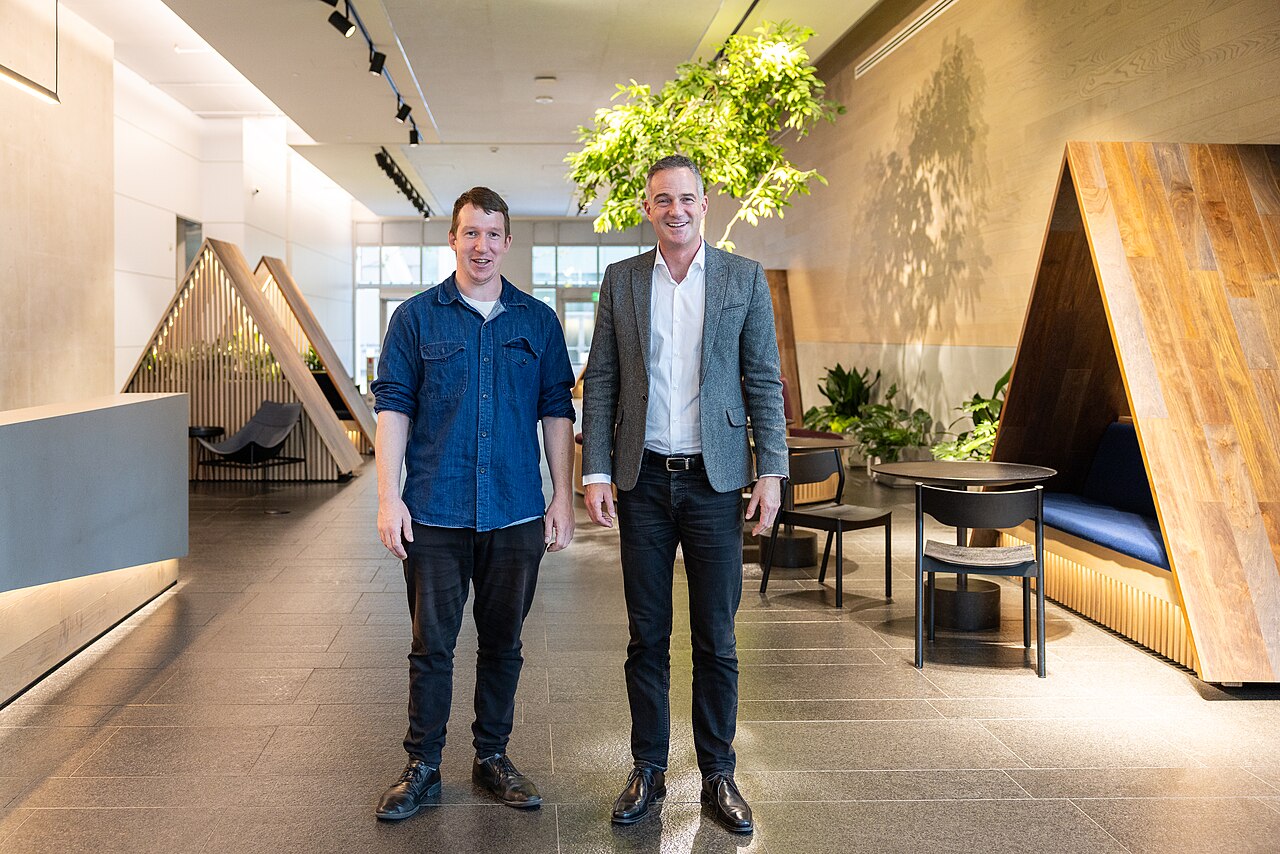
Header image: Anthropic's San Francisco office during a 2024 visit by the UK Secretary of State for Science, Innovation and Technology, by the Department for Science, Innovation and Technology via Wikimedia Commons, licensed under CC BY 2.0. In-body portrait of Dario Amodei by TechCrunch via Wikimedia Commons, licensed under CC BY 2.0.